---
title: "Product Categories"
description: "Organize your buyback products into categories."
url: "https://docs.gytabuyback.com/features/product-categories/"
---
**Setting up products — step 1 of 3.** Start with categories, then [Product Attributes](../product-attributes/), then [Create Products](../product-setup/). In Dual and Net modes you can designate some of these categories as trade-in devices — see [Trade-In Catalog](../store-modes/trade-in-catalog/).
## Product Categories
Navigate to **Products → Categories** to organize your buyback products.
## Setting Up Categories
For an electronics buyback store, you might create categories like:
* **Phones** — Apple, Samsung, Google
* **Tablets** — iPad, Galaxy Tab
* **Laptops** — MacBook, Dell, HP
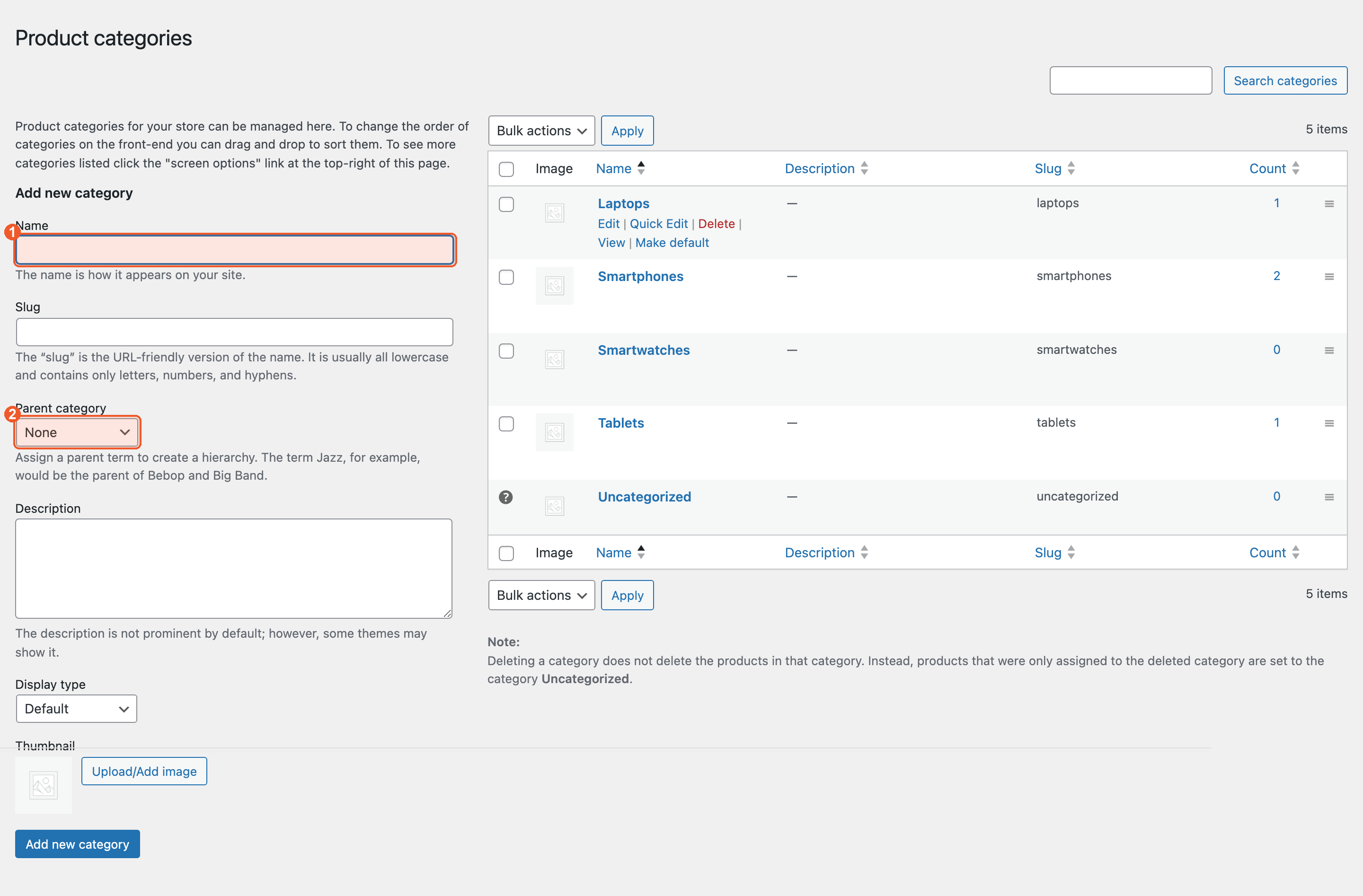
Type the name into **Name** (1) and click **Add new category**. To nest one category inside another, pick its parent under **Parent category** (2).
Categories help organize your storefront. Customers browse categories to find the product they want to sell to you.