---
title: "Create Products"
description: "Create variable products with buyback pricing."
url: "https://docs.gytabuyback.com/features/product-setup/"
---
**Setting up products — step 3 of 3.** The final step — make sure your [categories](../product-categories/) and [attributes](../product-attributes/) are set up first.
## Creating a Buyback Product
Navigate to **Products → Add New** to create a buyback product.

## Setting Up a Variable Product
Enter the product name (1) — for example "Nova Phone 15 Pro" — and pick a **category** in the sidebar.
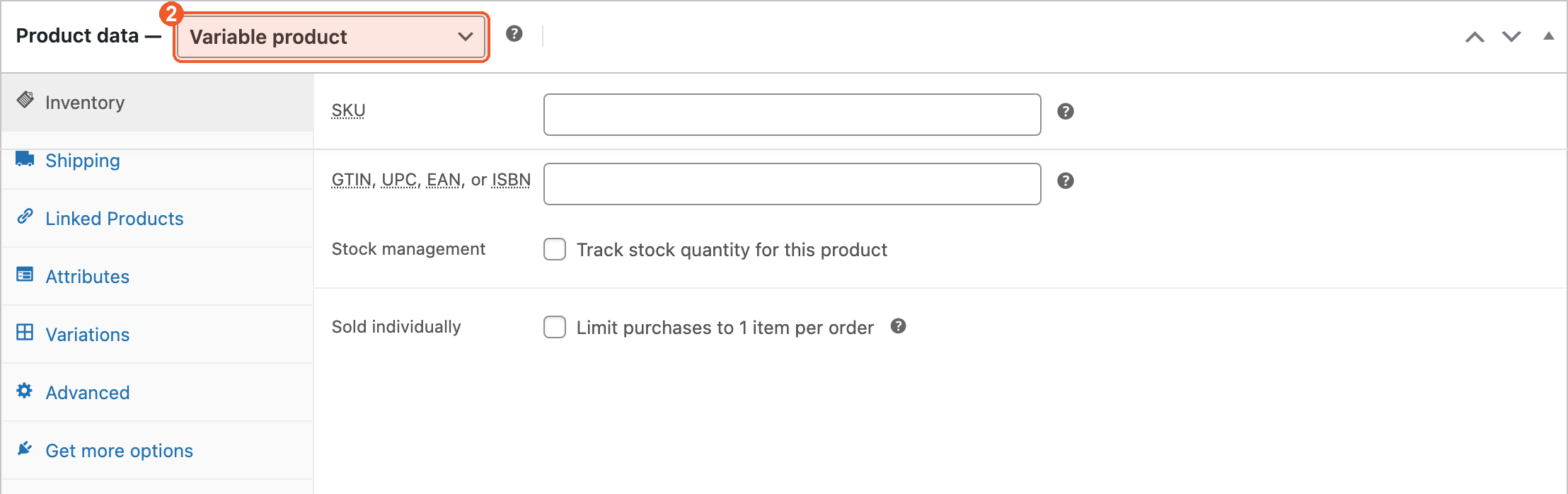
Set product type to **Variable product** (2) in the Product data dropdown.
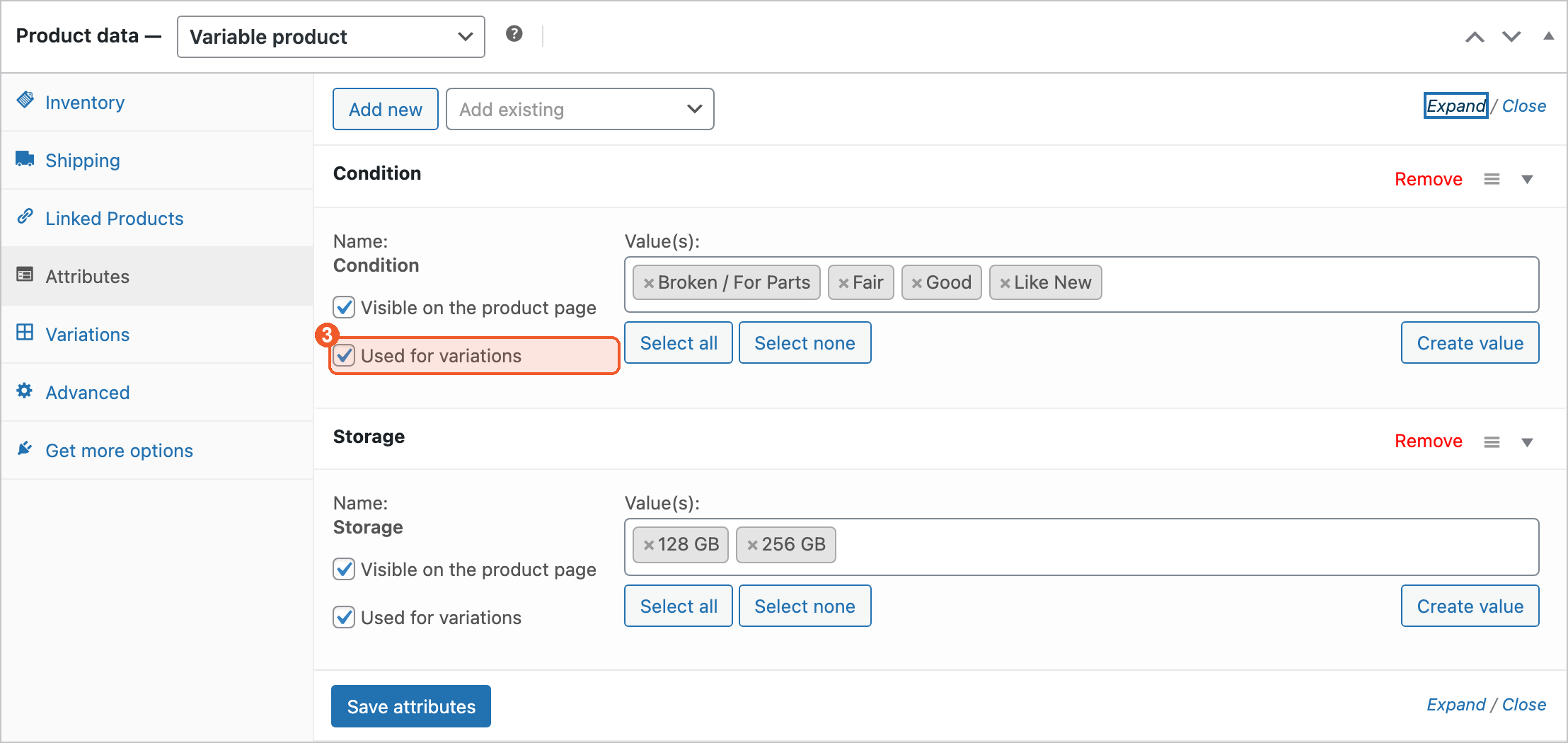
Go to the **Attributes** tab, add each attribute, and check **Used for variations** (3) on every one you want to price separately.
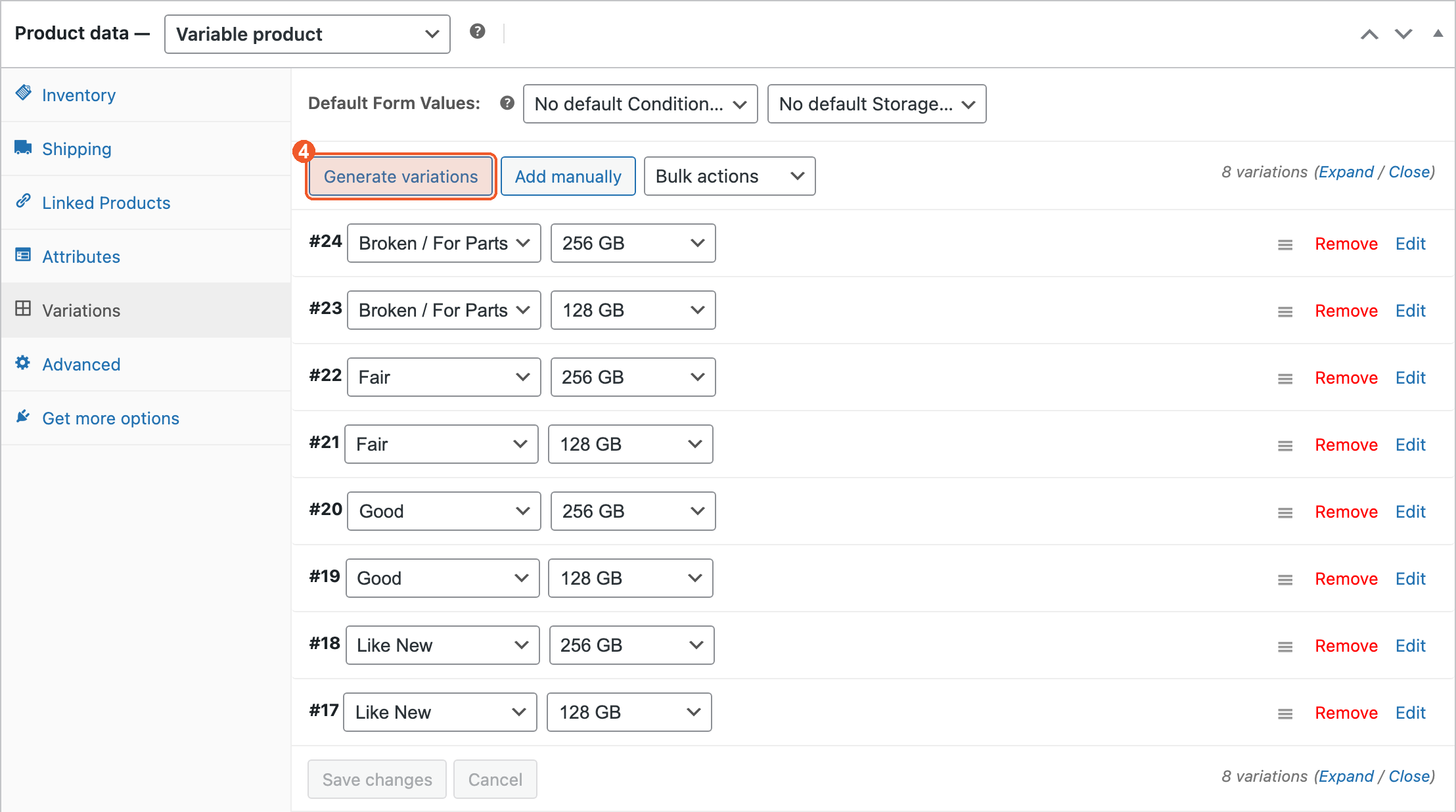
Go to the **Variations** tab and click **Generate variations** (4) to create every combination — here, four conditions × two storage sizes = eight variations.
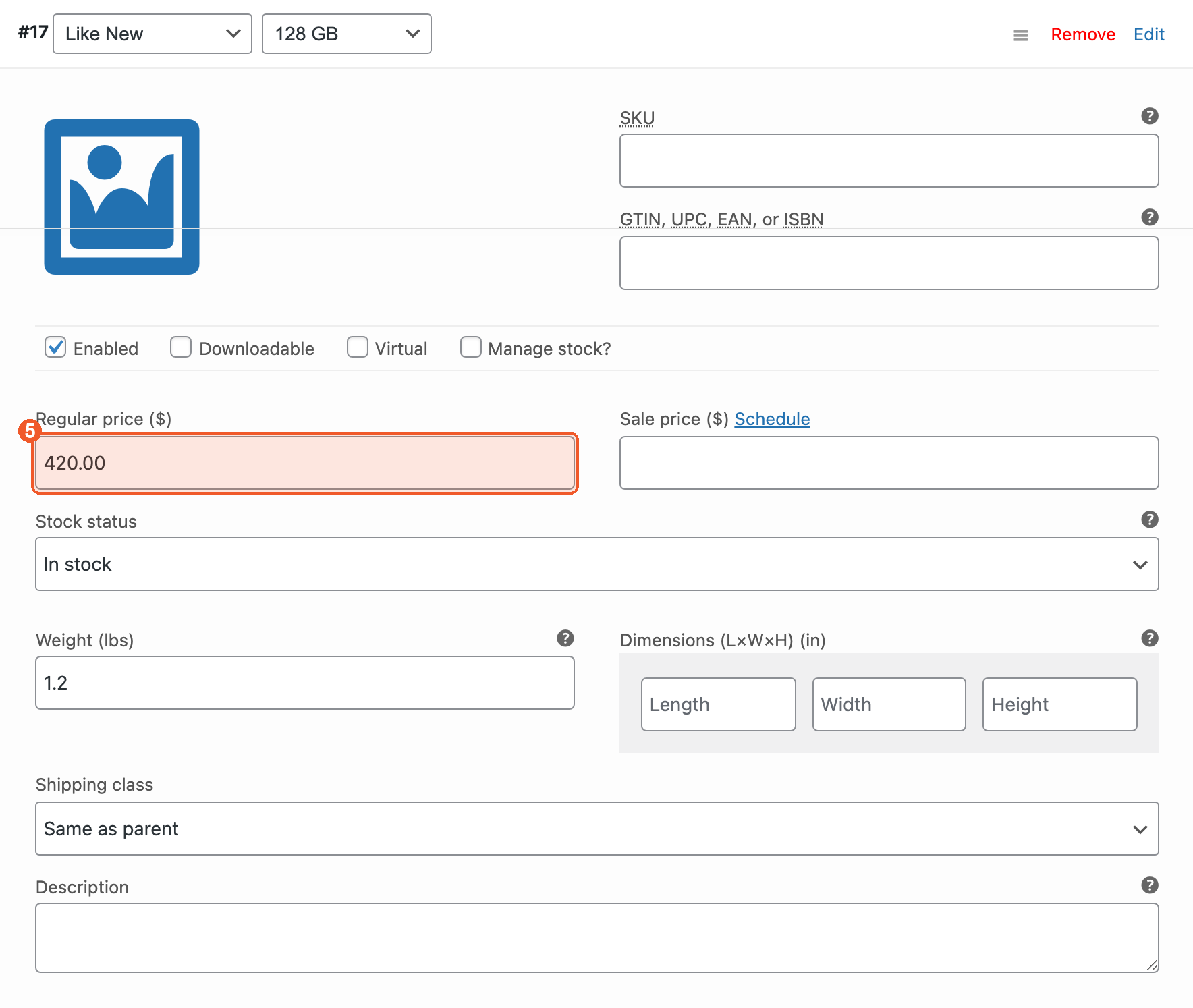
Expand a variation and set its **Regular price** (5) — this is the amount you pay the customer for that exact combination.
## Product Images
Add a product image and gallery images in the sidebar of the product screen, so customers can confirm they picked the right device.
## Product Weight
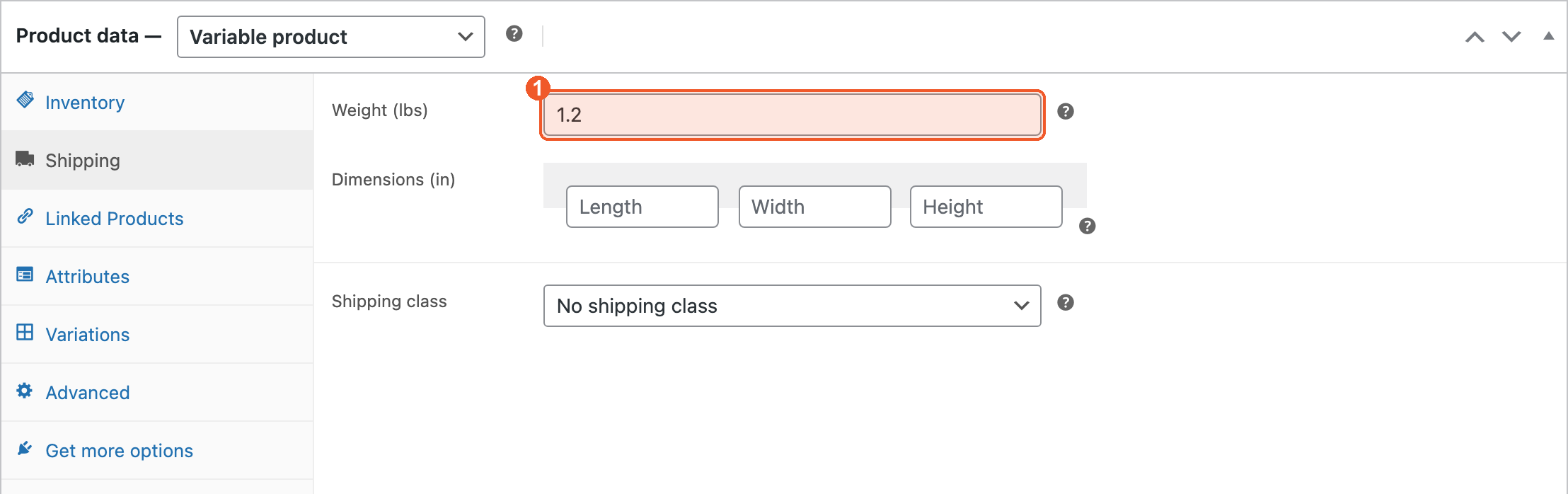
Set the product weight in the **Shipping** tab (1). EasyPost uses it to rate and buy the prepaid label, so an empty weight means a wrong rate.
## Publishing
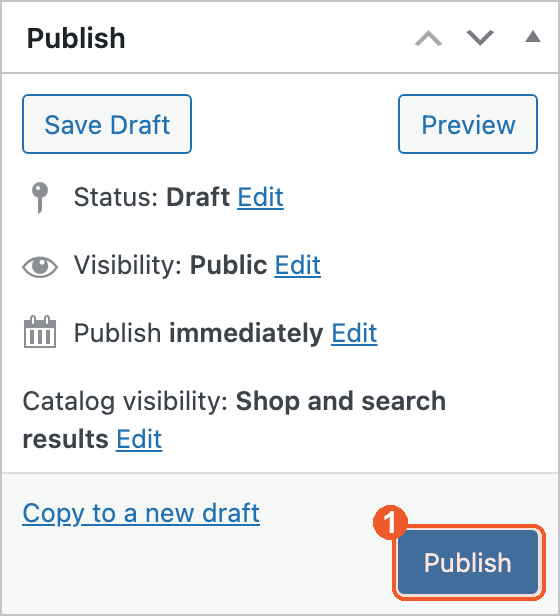
Once configured, click **Publish** (1). The product appears on your storefront for customers to sell to you.
**Important:** The Regular Price is the buyback amount you pay the customer for that specific condition/carrier combination.